VS Code × Tapter MCP
You can connect Tapter to VS Code with GitHub Copilot as an MCP server and manage your links right from the chat. Step-by-step guide below.
By connecting Tapter to VS Code, you manage your links right in the Copilot chat in agent mode: create and edit pages, add blocks, and upload images — on your behalf and without a password.
Add Tapter to your MCP client at this address:
https://tapter.one/mcp
There are no tokens to type in by hand — Tapter will ask you for access itself.
Open the command palette (Cmd+Shift+P or Ctrl+Shift+P) and run MCP: Add Server…
VS Code will ask whether you trust the server — click Trust.
The MCP: Open User Configuration command opens your mcp.json (for a project it’s .vscode/mcp.json). Put this in:
{ "servers": { "tapter": { "type": "http", "url": "https://tapter.one/mcp" } } }
On the first connection a browser opens with a Tapter window. Make sure the app is Visual Studio Code, then click Allow.
If the window didn’t open on its own — in mcp.json there’s a line of actions above the server entry, and sign-in is there too.
Open the chat, pick Agent mode, click Configure Tools and check that the tapter tools are ticked.
Type: “show my Tapter links”. For the server list and logs, run MCP: List Servers.
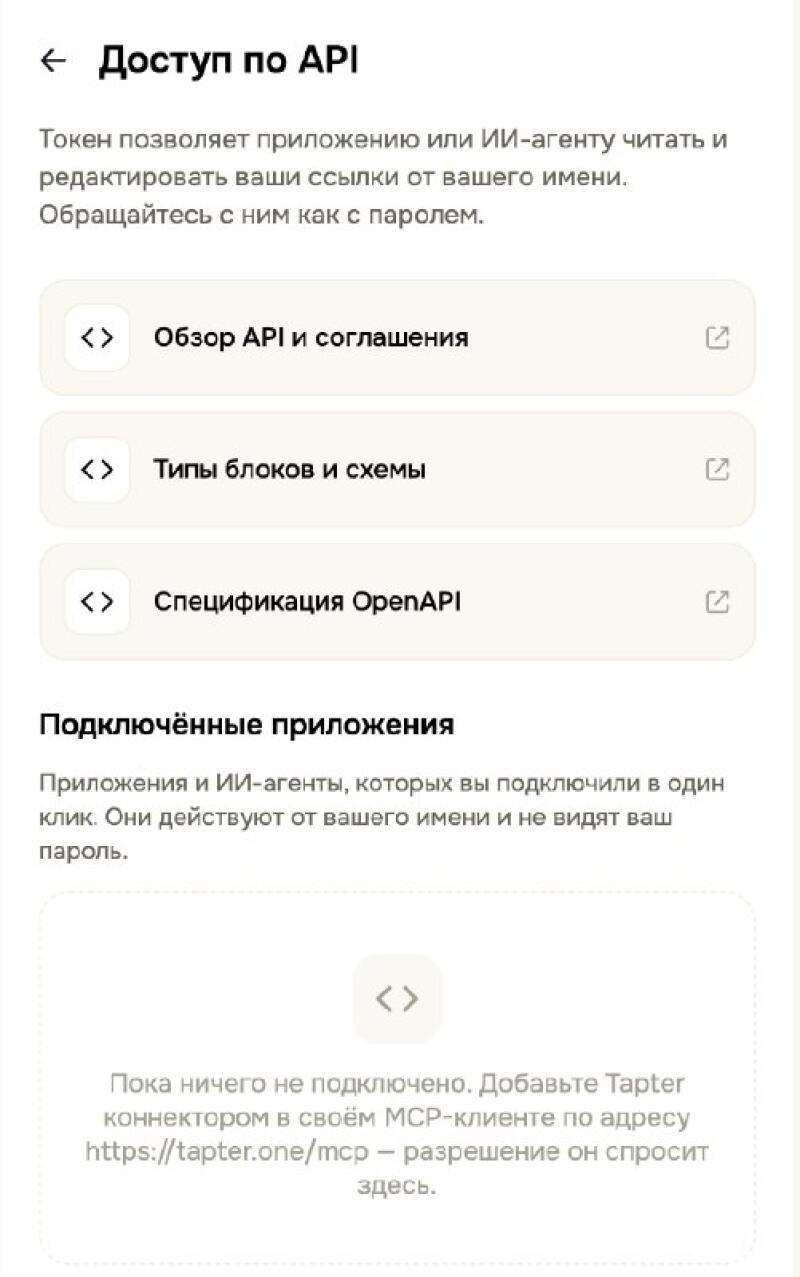
Every connected app and AI agent is visible in the Tapter app: Settings → API access. You can revoke access there at any time.