ChatGPT × Tapter MCP
You can connect Tapter to ChatGPT as an MCP connector and manage your links right from the chat. Step-by-step guide below.
By connecting Tapter to ChatGPT, you manage your links right inside the chat: create and edit pages, add blocks, and upload images — on your behalf and without a password.
Add Tapter to your MCP client at this address:
https://tapter.one/mcp
Tapter will ask you for access itself.
Custom MCP connectors are added on the web only — at chatgpt.com from a computer. The mobile app has no such setting, but once connected the connector works there too.
You also need Developer mode turned on. On Business and Enterprise/Edu plans a workspace admin has to allow it first.
Open Settings → the Apps section (in some versions it’s called Connectors or Plugins) → Advanced settings.
Switch on Developer mode.
In the same section click Create and fill in the fields:
Name — Tapter
Description — My Tapter links: pages, blocks, images
MCP server URL — https://tapter.one/mcp
Authentication — OAuth
Click Scan Tools, wait for the scan to finish, then click Create.
A Tapter window will open asking for access. Make sure the app is ChatGPT and the return address is chatgpt.com (it can’t be faked), then click Allow. You’ll return to ChatGPT already connected.
The connector is active. In a new chat enable Tapter in the app list and ask, for example: “show my Tapter links” or “add a phone button to the page” — and ChatGPT will do it on your behalf.
If the assistant says it can only read, write actions over MCP are still limited on your plan. Reading pages and analytics works either way.
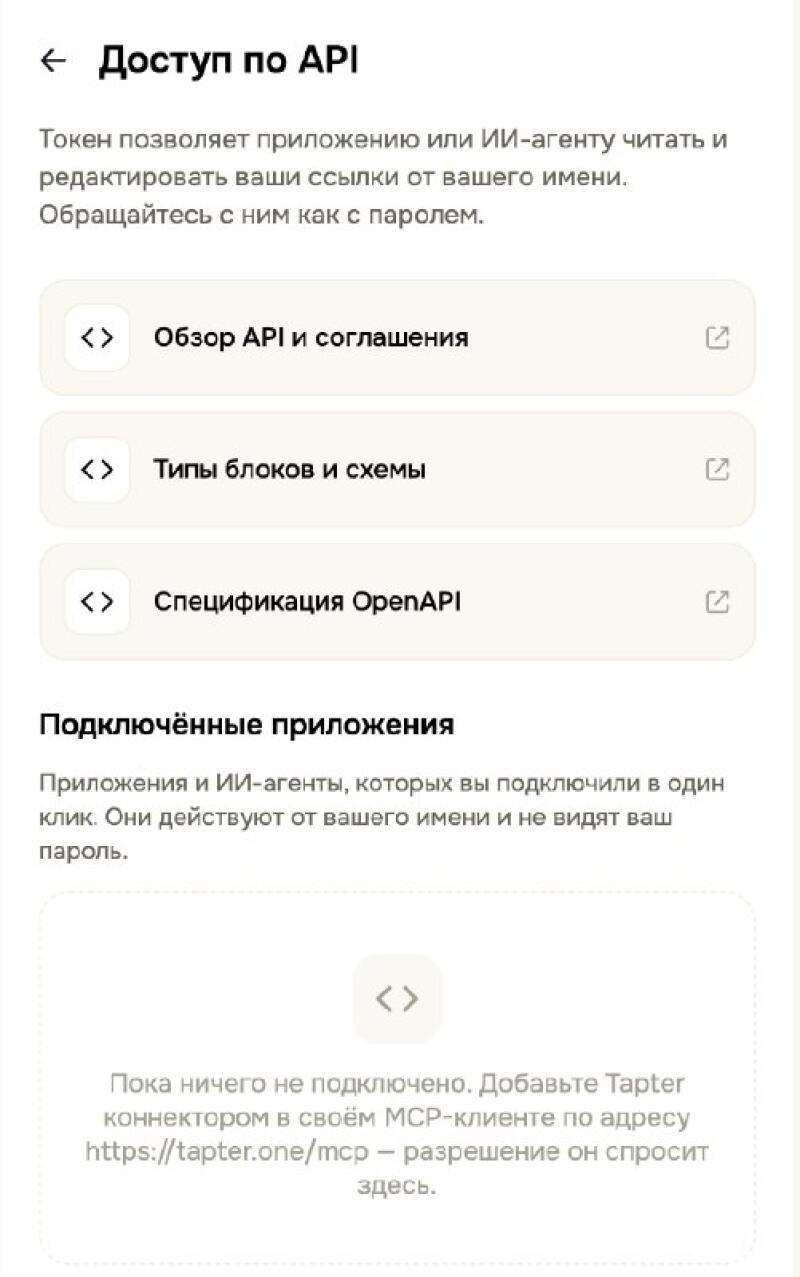
You can manage access in the Tapter app: open Settings → API access.
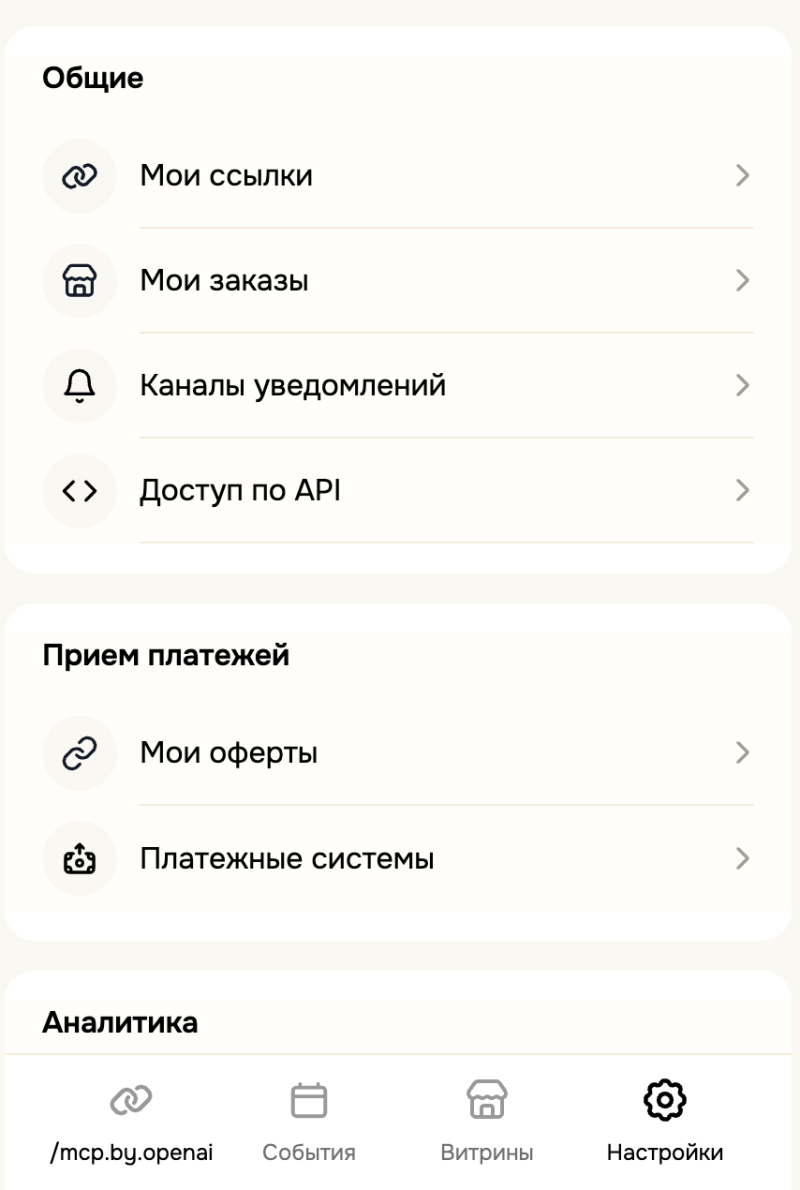
The API access screen shows every connected app and AI agent. From here you can revoke access at any time.