Cursor × Tapter MCP
You can connect Tapter to Cursor as an MCP server and manage your links right from the chat with the agent. Step-by-step guide below.
By connecting Tapter to Cursor, you manage your links right in the chat with the agent: create and edit pages, add blocks, and upload images — on your behalf and without a password.
Add Tapter to your MCP client at this address:
https://tapter.one/mcp
There are no tokens to type in by hand — Tapter will ask you for access itself.
A remote MCP server in Cursor is set in a config file:
If the file isn’t there, create it.
Put this in the file:
{ "mcpServers": { "tapter": { "url": "https://tapter.one/mcp" } } }
The url field is enough: it tells Cursor the server is remote, and Cursor sorts out the transport on its own. No keys or secrets to write down.
Save the file — Cursor picks the server up and offers to sign in. Confirm, and a Tapter window will open asking for access.
Make sure the app is Cursor, then click Allow.
You can turn servers on and off on the Customize page in the sidebar (Cursor 3.9 and newer). Tapter’s tools show up in the Available Tools list.
Ask the agent: “show my Tapter links”. Before the first call Cursor will ask you to confirm the action.
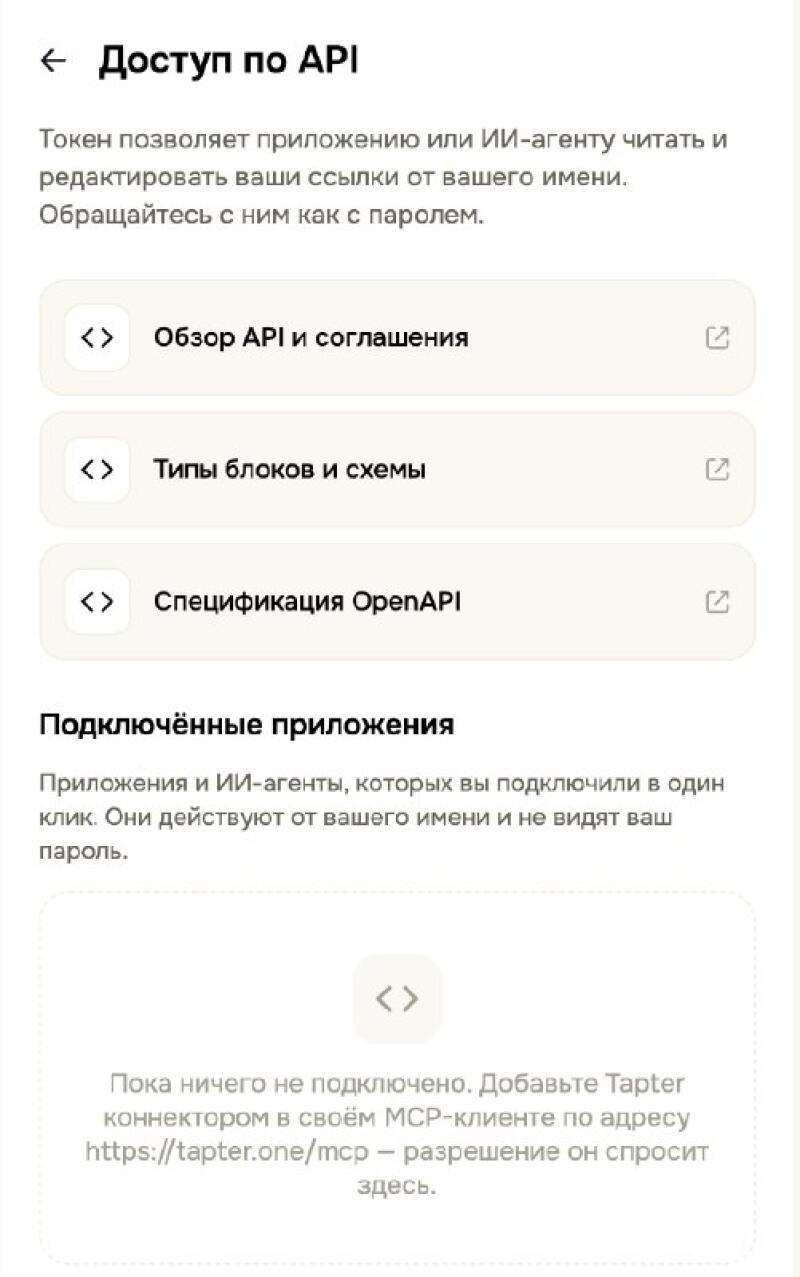
Every connected app and AI agent is visible in the Tapter app: Settings → API access. You can revoke access there at any time.